Contact Ground collects SMS consent in the authenticated user profile flow. A user must:
Add a phone number
Verify the phone number with a one-time code
Enable SMS notifications
Review the SMS disclosure dialog and click consent
Step-by-Step: How To Enable and Opt-In to SMS Notifications
Follow these steps while signed in to your Contact Ground account. Consent is only collected after
your phone number is verified and you explicitly approve the SMS disclosure dialog.
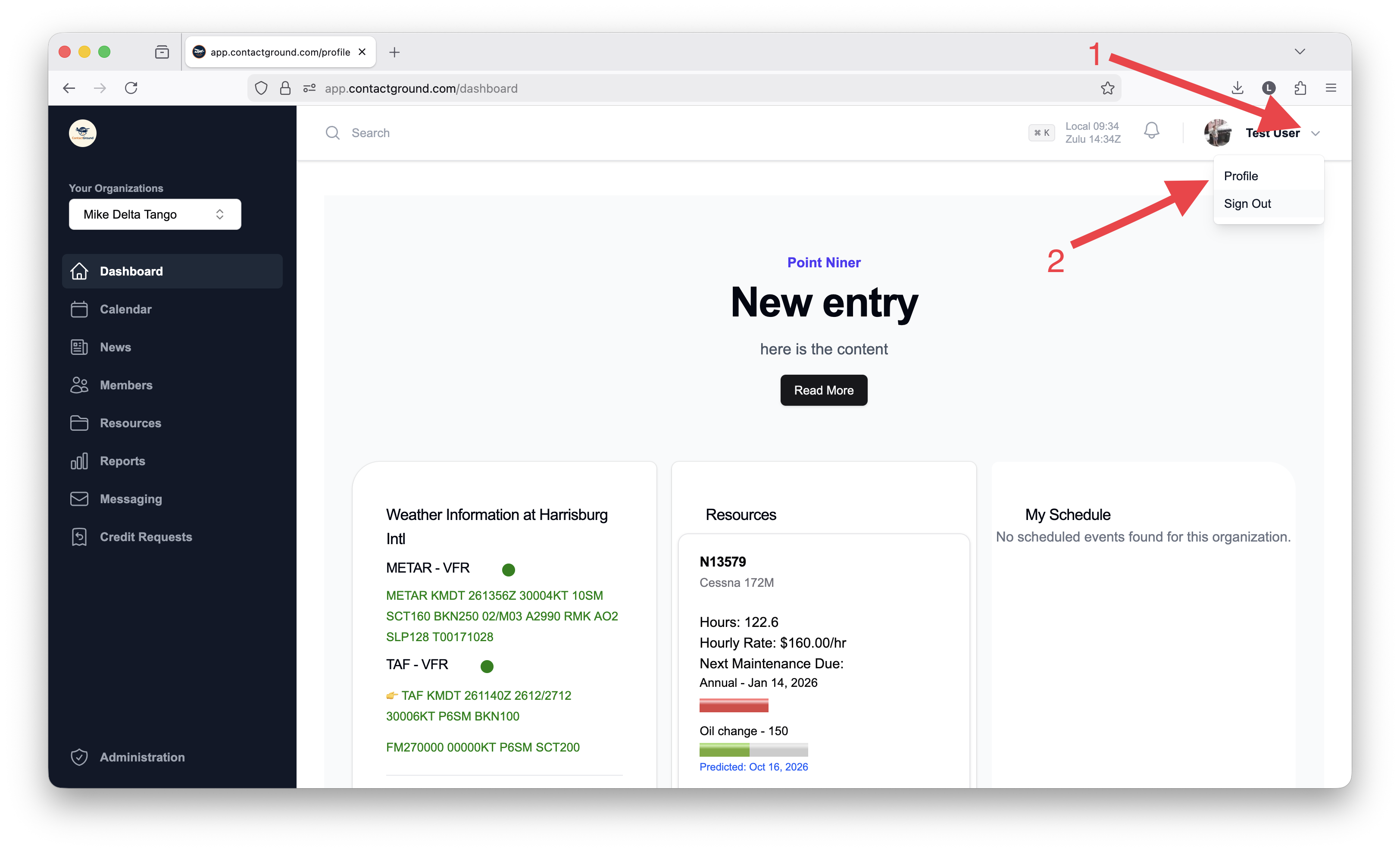
Open your Profile page.
Sign in, then open your user profile/settings page where account details and notification preferences are managed.
Access the Profile page.
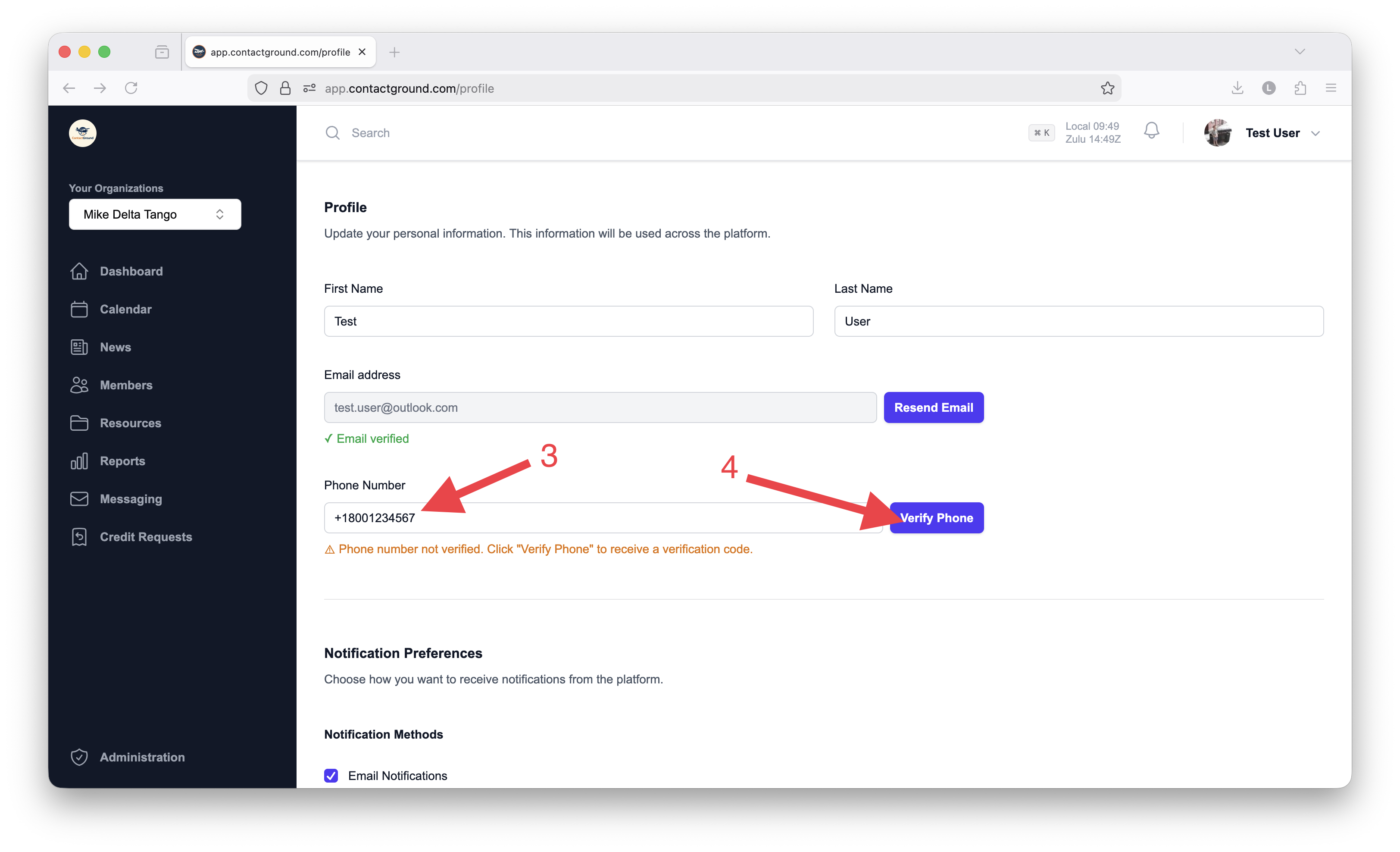
Enter your phone number in the Phone Number field and click "Verify Phone" to request a verification code.
Provide the mobile number that should receive notifications (for example, in E.164 format such as +1234567890). Contact Ground sends a one-time verification code to the phone number you entered.
The phone number field and the Verify Phone button.
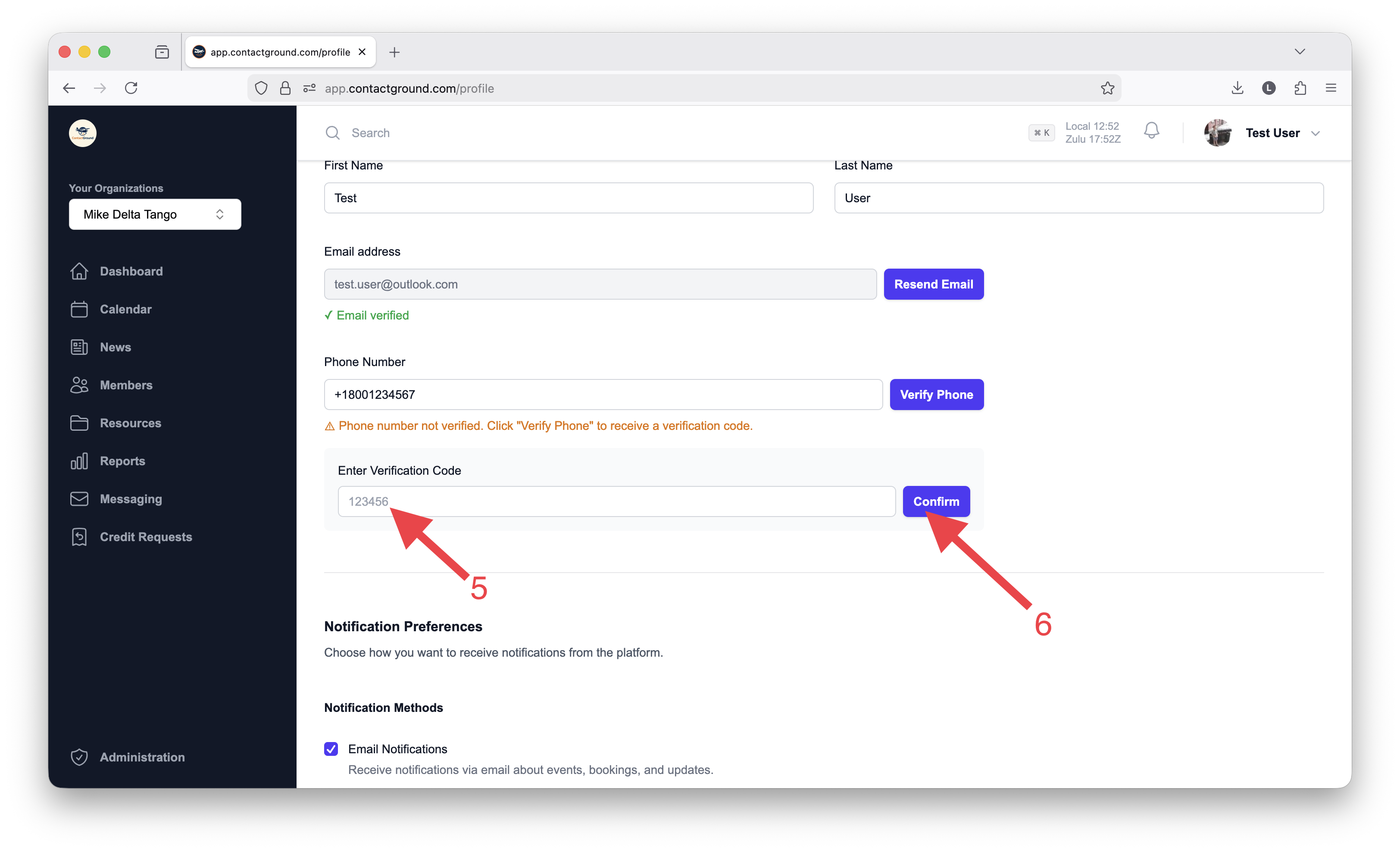
Enter the verification code and confirm.
Type the code into the verification input and click Confirm. The profile should then show that the phone number is verified.
The OTP/code entry UI and the verified confirmation state.The phone number will then show that it has been verified.
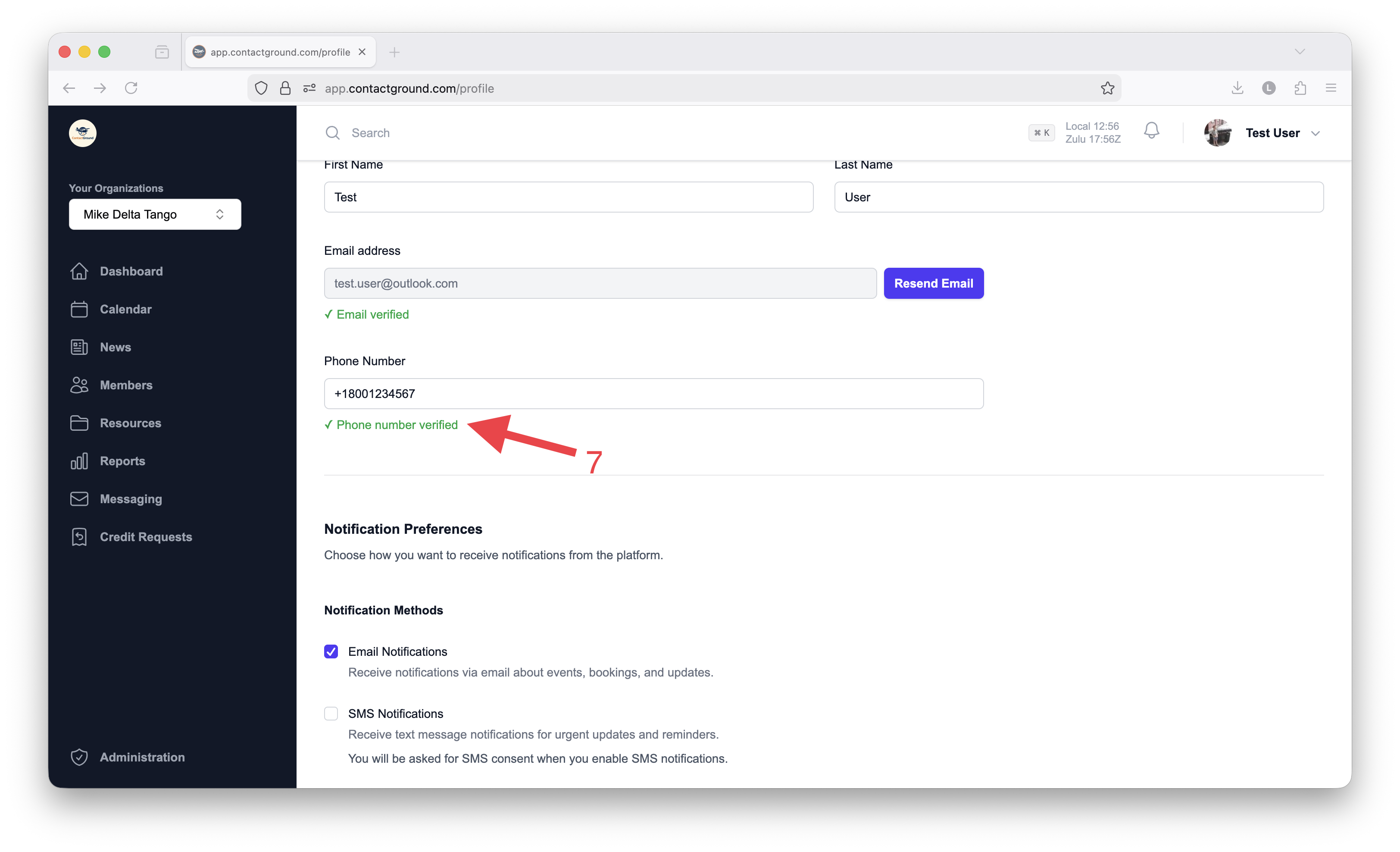
Only after successful verification does the SMS Notifications option become available in the Notification Preferences.
The profile indicating the phone number is verified.
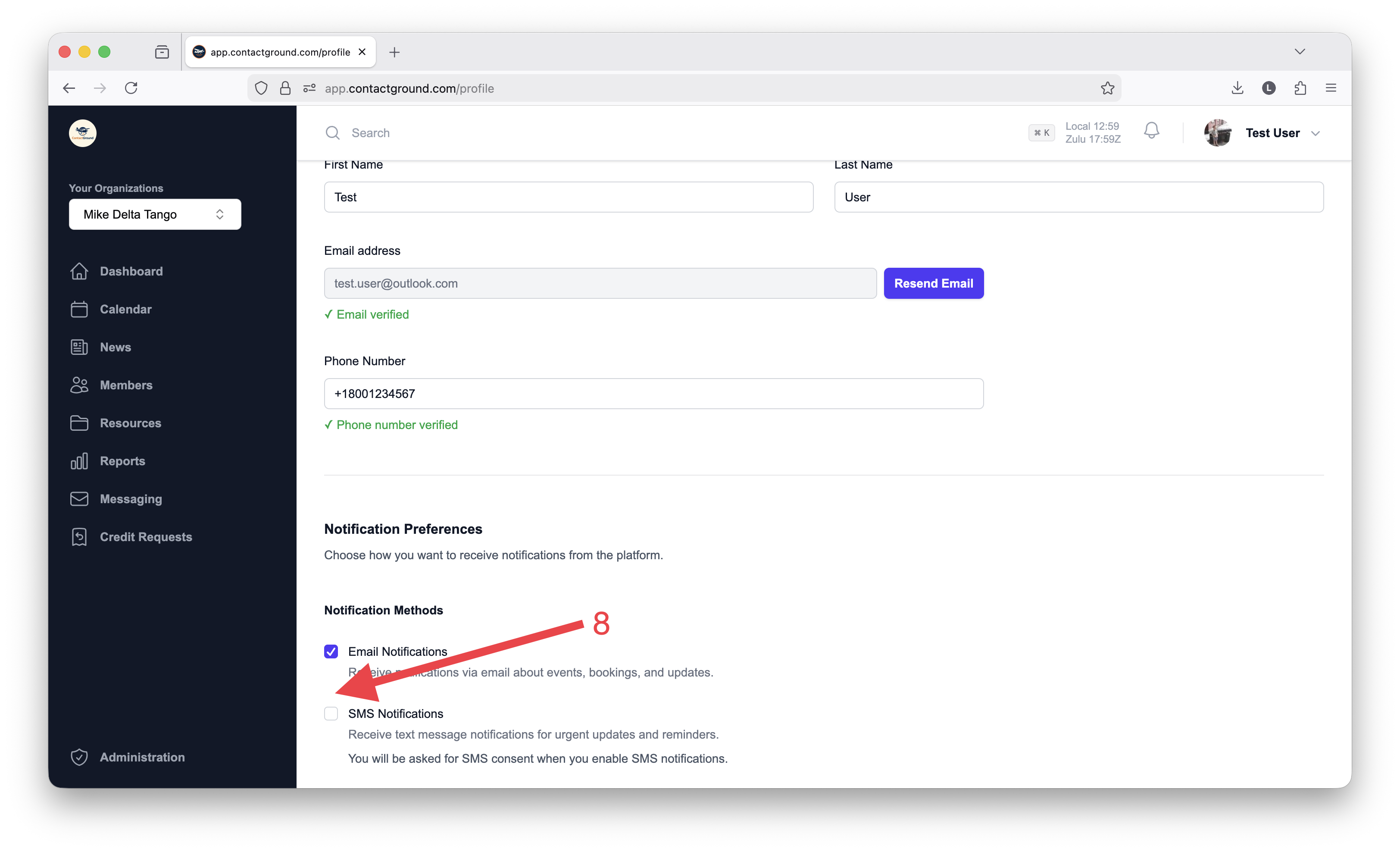
Enable the “SMS Notifications” checkbox in Notification Preferences.
Once the phone number is verified, the SMS Notifications option becomes available. Checking it starts the consent flow.
The SMS Notifications checkbox enabled and ready to be selected.
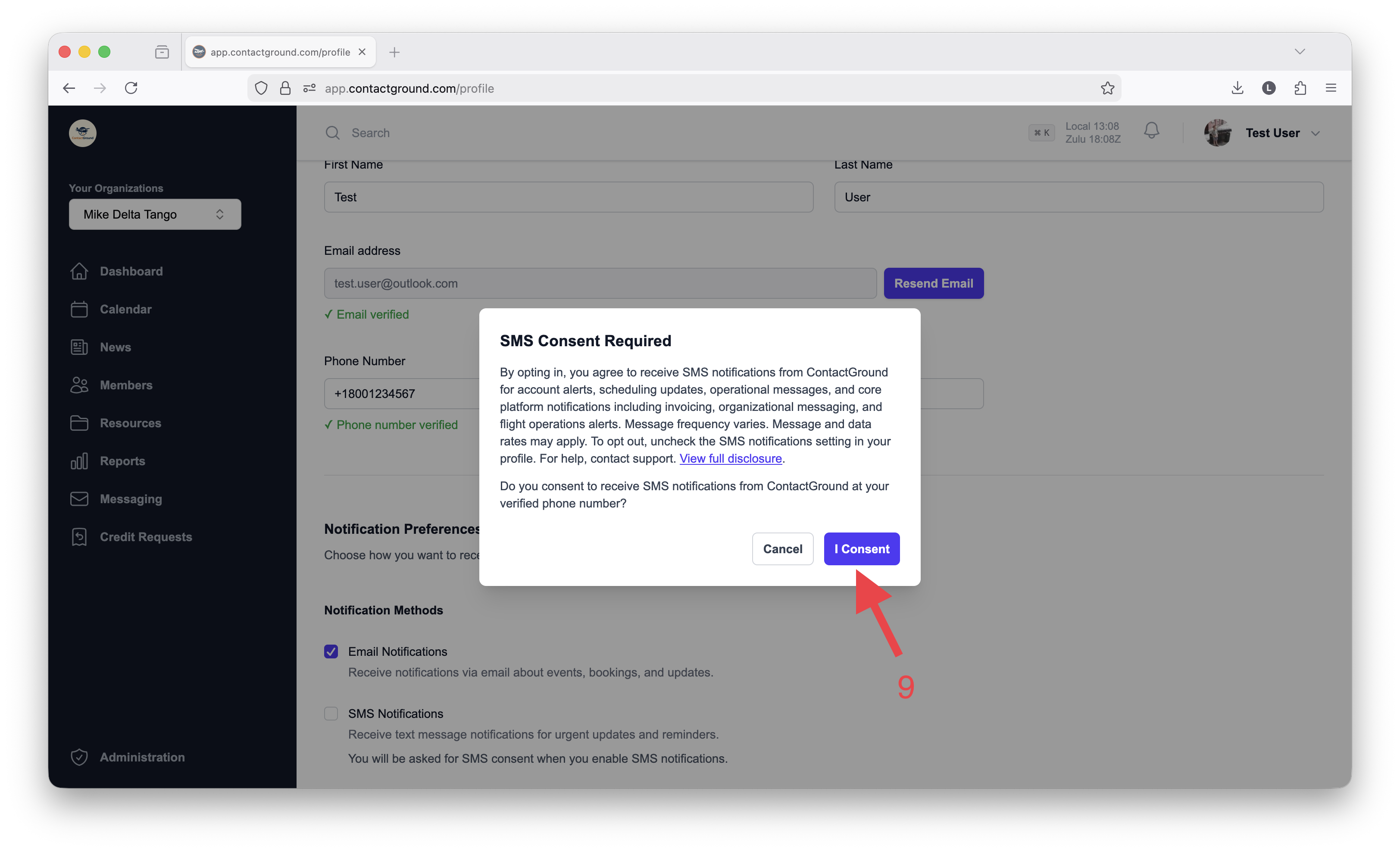
Review the SMS consent disclosure dialog and click “I Consent.”
This is the explicit consent capture step. The user must read the disclosure and affirmatively click I Consent.
Actual SMS consent dialog presented when the user enables SMS notifications.
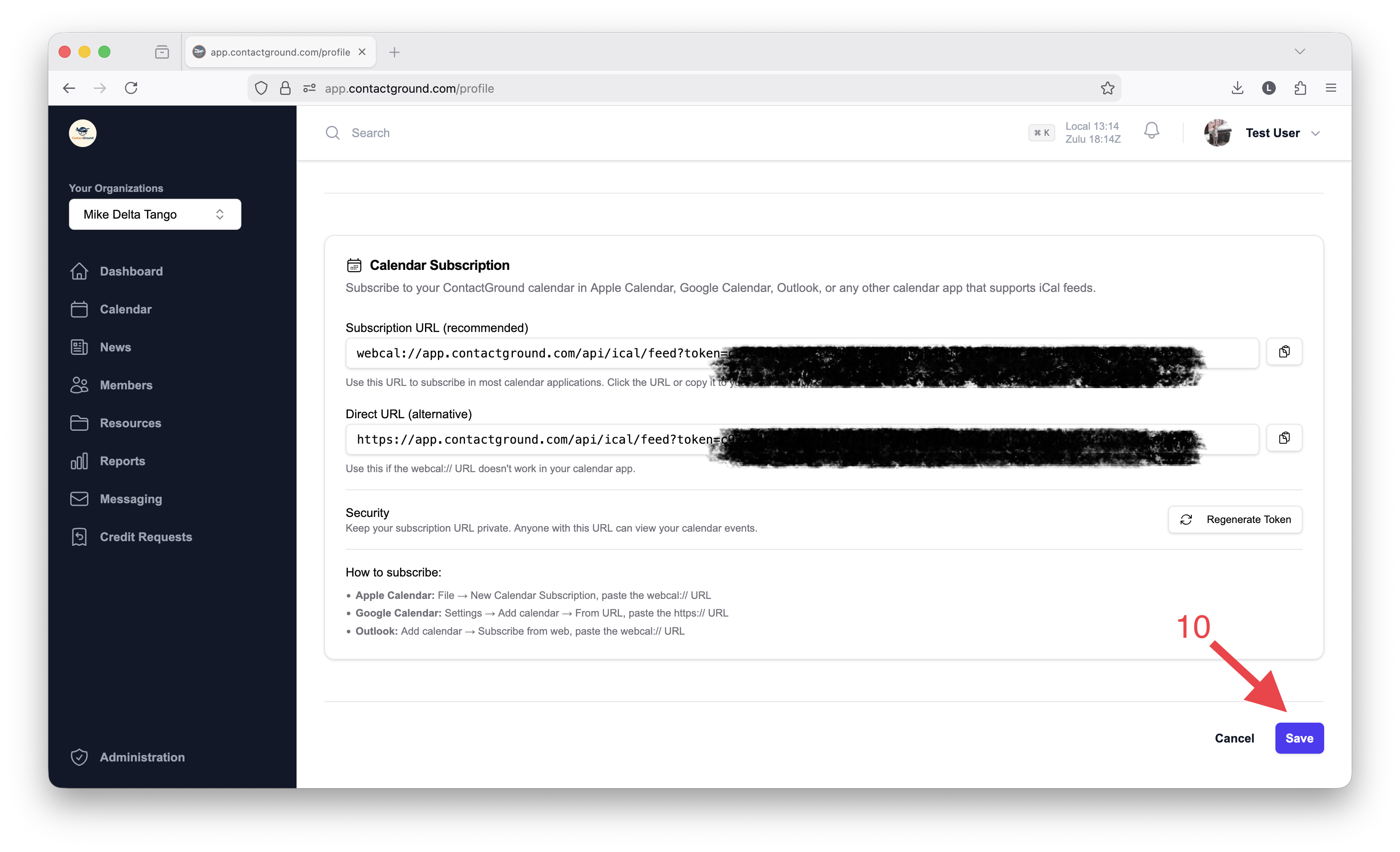
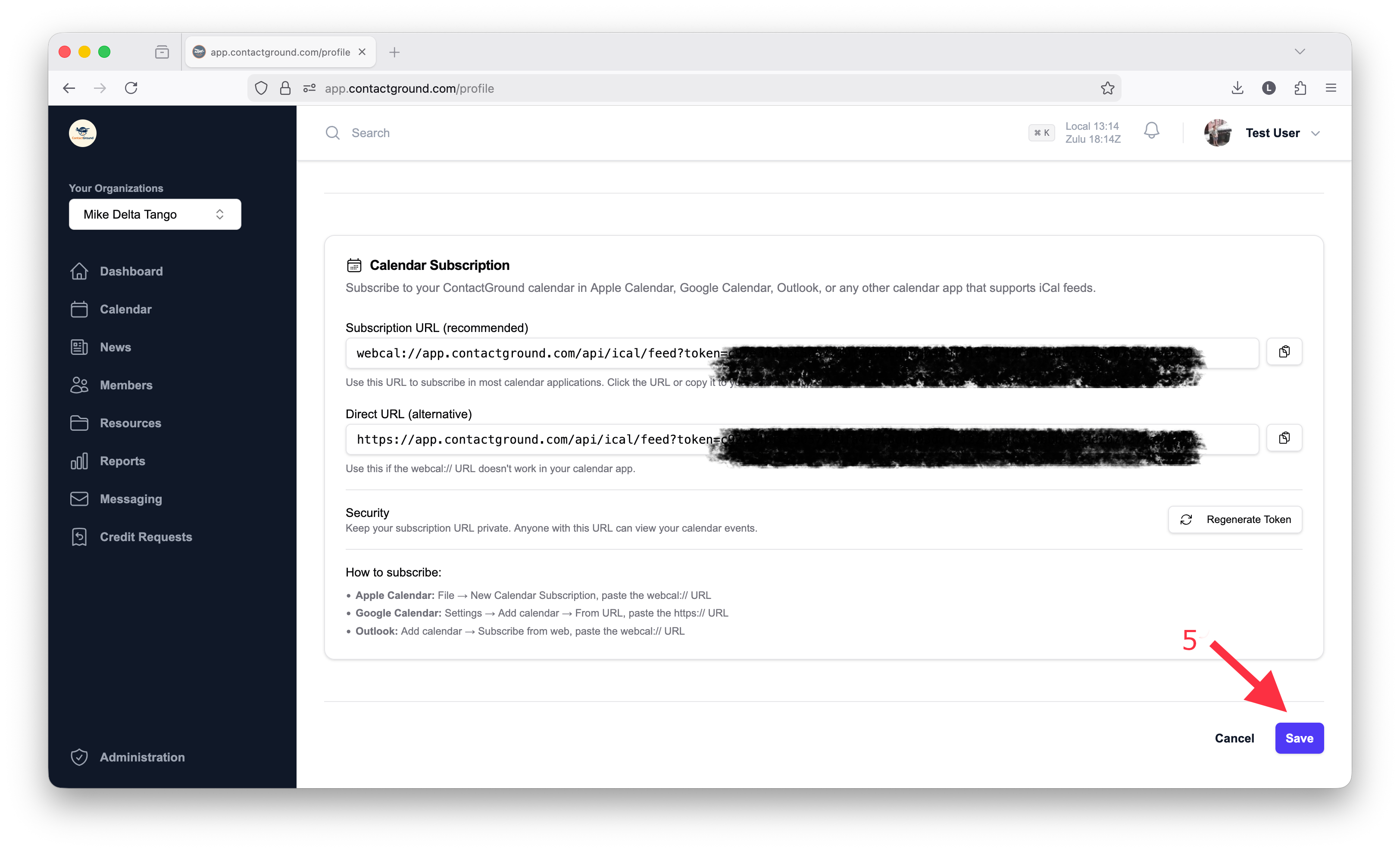
Save the profile changes.
Click Save on the profile form to persist the phone number, verification status, consent status, and SMS notification preference.
The final save action that persists the SMS notification setting.
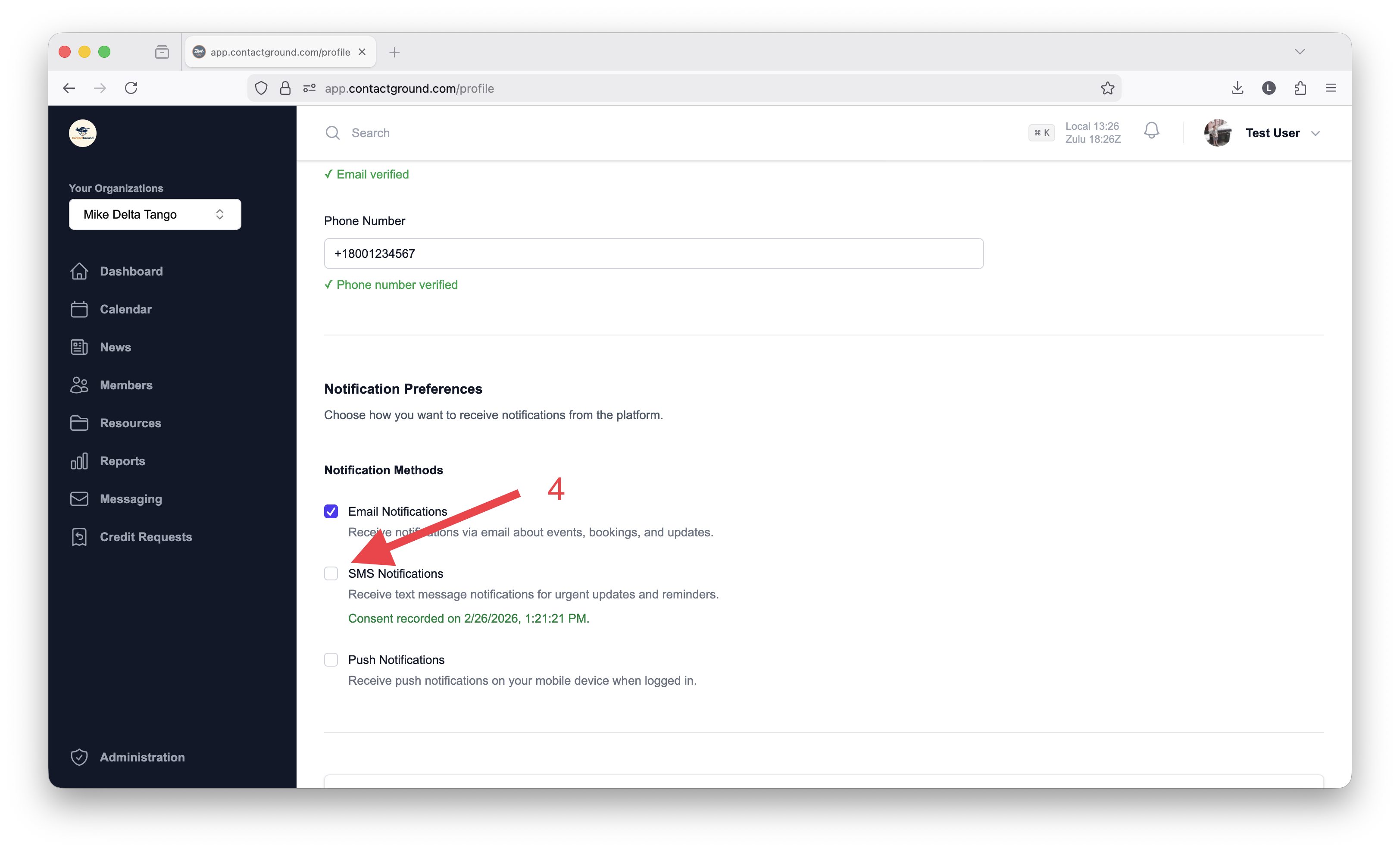
After consent is recorded, the profile may display a message indicating the consent timestamp.
Step-by-Step: How To Opt Out of SMS Notifications
Users can opt out of Contact Ground SMS notifications at any time from their profile settings.
Open your Profile page.
Sign in and navigate to the same Profile page used for notification settings.
Access the Profile page to manage notification preferences.
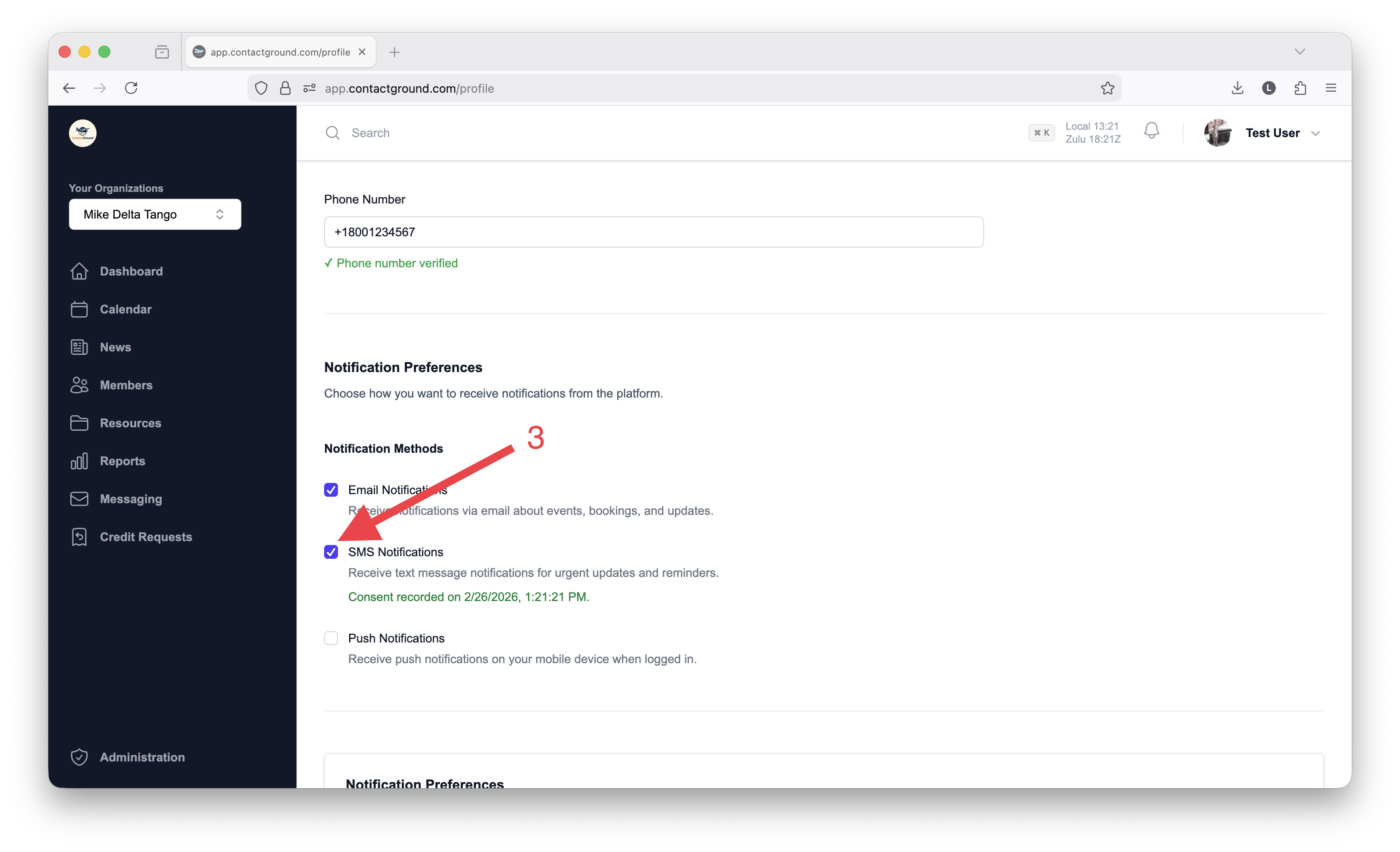
Go to the “Notification Preferences” section.
Locate the Notification Methods list where Email, SMS, and Push notification options are displayed.
The enabled SMS Notifications checkbox showing the date of consent.
Uncheck the “SMS Notifications” checkbox.
This disables SMS delivery for future Contact Ground notifications to the verified phone number.
The SMS Notifications option turned off.
Click “Save” to apply the change.
The user must save the profile form for the opt-out preference to be persisted.
The final save action confirming the SMS opt-out workflow.
Contact Ground’s SMS disclosure also informs users that they can opt out by unchecking the SMS notifications setting in their profile.
Consent Language
By opting in, you agree to receive SMS notifications from Contact Ground for account alerts,
scheduling updates, operational messages, and core platform notifications including invoicing,
organizational messaging, and flight operations alerts. Message frequency varies. Message and
data rates may apply. To opt out, uncheck the SMS notifications setting in your profile. For help,
contact support.